
Your wallet explains money collected and money still due
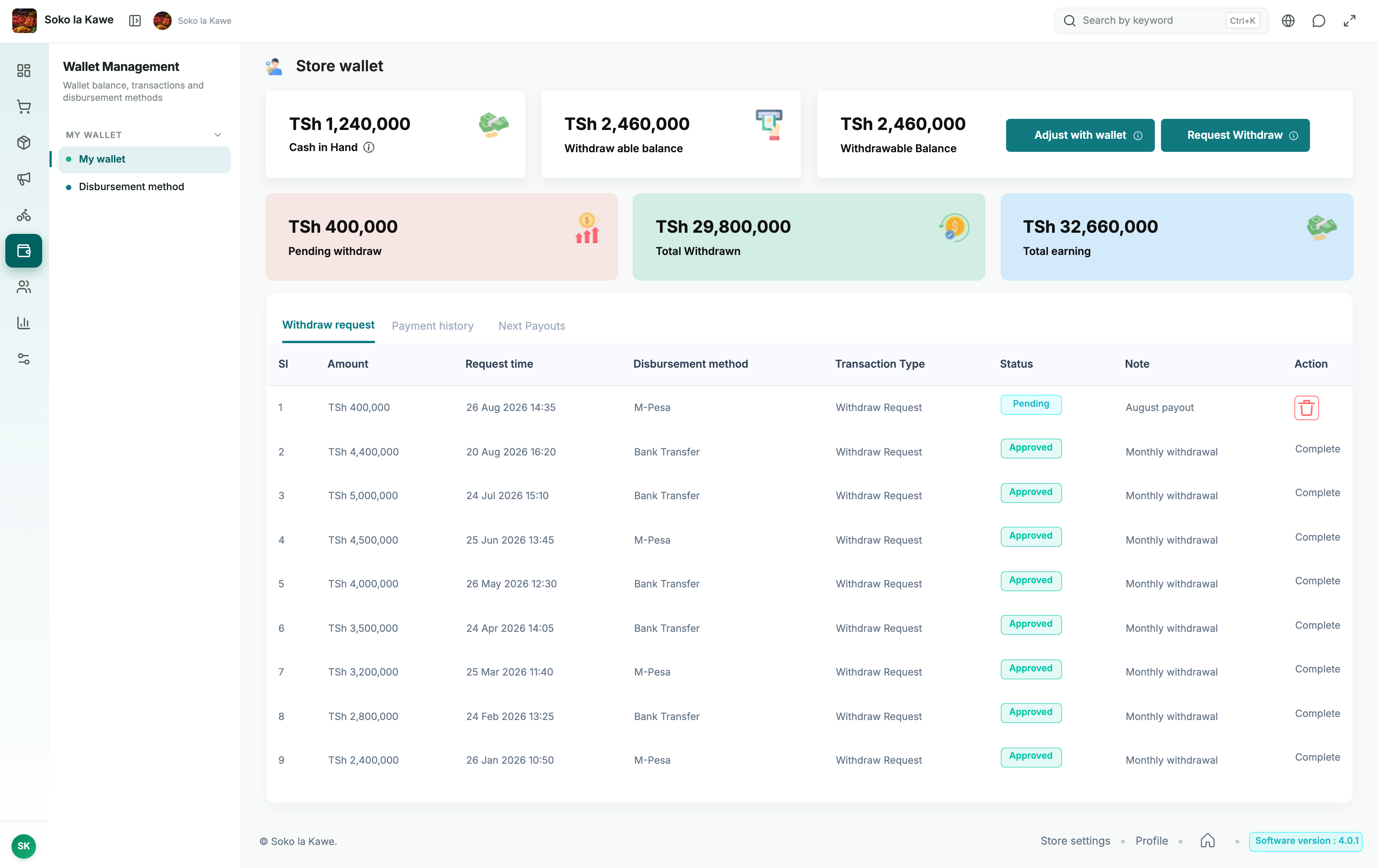
The wallet brings together earnings, withdrawals and cash already collected for the selected store. Settlement means accounting for what has already been collected or paid, and what is still owed. Think of the wallet as the store’s running account with Soko. It is not the same as the money physically in your till or mobile-money account. Check the branch at the top before reading balances or requesting money.
With COD, your team may already hold customer money. With an in-app digital payment or an admin-funded promotion, money may instead be due through platform settlement. The wallet accounts for both so cash you already collected is not withdrawn a second time.
Read the balances
Scroll sideways to compare all columns.
| Wallet label | Meaning |
|---|---|
| Total earning | Earnings recorded for your store. This is not the profit left after all your business costs. |
| Withdrawn | Earnings already recorded as withdrawn/settled. Adjustments can also increase the settled amount. |
| Pending withdrawal | Money reserved for withdrawal requests awaiting completion. It is not available to request again. |
| Cash in hand/Collected cash | Customer money recorded as collected on the store side and not yet matched against earnings or settled in these records. Reconcile it with store/rider collection records. |
| Withdrawable balance | Earnings remaining after settled withdrawals, pending requests and recorded collected cash. |
| Payable/Pay now | A settlement amount that the wallet asks the store to pay to Soko, where applicable. It is not a withdrawal to your bank or phone. |
When earnings are positive, the available balance is earnings − withdrawn − pending withdrawals − collected cash. With no positive recorded earnings, the wallet reports no withdrawable balance. Some overview cards show earnings before subtracting collected cash. Read the label beside the number and the amount available in the withdrawal action.
Why COD does not create a second payout
Example: the ledger shows TSh 100,000 in earnings, TSh 20,000 settled, TSh 10,000 pending and TSh 50,000 already collected. The remaining withdrawable balance is TSh 20,000. The TSh 50,000 is not lost: it is money Soko’s records say your side has already collected.
This is an accounting example, not an assurance that every sale has those amounts. Check discounts, delivery, taxes, payment method and rider arrangement on the real transaction.
Set a withdrawal method
- Open Wallet method/Withdraw methods for the correct branch and choose an available method.
- Enter the destination details requested by that method. These fields are set by Soko; use your actual bank/account or mobile-money details as requested.
- Check the recipient name and every account/phone digit, then save.
- Review the saved method. If you set it as the default, check that it is the one you intend Soko to use for that branch’s disbursements.
- When making a withdrawal request, check the method and destination in the request itself. Do not assume an old saved destination is still correct.
A disbursement is a payment sent out to the store through the platform’s payout process. Saving a method supplies destination details; it does not itself request a payment.
Only authorised staff should have Wallet method permission. A correct balance sent to the wrong destination is still a problem for the business.
Request a withdrawal
- Open Wallet for the correct branch and check the available balance.
- Choose Withdraw/Request withdrawal.
- Select the method, verify the destination fields and enter an amount within the available balance and on-screen requirements.
- Submit and keep the request reference.
- Follow its status in the withdrawal list and check the destination account when completed.
You can submit a request whenever you have an eligible available balance and withdrawal is available; you do not need to wait for a particular sales milestone. A request is not an instant payout guarantee. Processing, review and method availability determine when money arrives.
Scroll sideways to compare all columns.
| Request state | What to do |
|---|---|
| Pending | The amount is reserved while the request awaits action. Do not submit it again. |
| Approved | Review the settlement record and destination account; approval and a bank/mobile-money receipt are different evidence. |
| Denied/Rejected | Read the reason, correct the issue and recheck the restored available balance before requesting again. |
Adjust payment: offset balances, without moving cash
Adjust payment matches earnings already recorded in the wallet against customer money your side has already collected. It creates an adjustment record and updates the settled totals. It does not charge your phone, send a bank transfer, pay your rider or create extra earnings.
Example: before an adjustment, the earnings balance after previous withdrawals and pending requests is TSh 80,000 and collected cash is TSh 50,000. An adjustment offsets TSh 50,000, leaving TSh 30,000 of earnings and zero collected cash in that calculation. The amount still available is unchanged; the records now show that part of the earnings was already collected.
If collected cash exceeds the available earnings balance, only the matching portion is offset and the remainder remains recorded. Read the amounts and reconcile the transactions before choosing the action. Do not use it merely to make a confusing number disappear.
Pay now: money goes from the store to Soko
Use Pay now only when the wallet shows an amount payable and you understand the underlying settlement. It opens the available payment route for paying that amount to Soko. After completion, return to the wallet and verify the payment record and updated balance.
It is different from Withdraw, which requests money out to your saved destination, and Adjust payment, which offsets ledger balances. If a payment screen fails after money was debited, check the transaction and contact support before paying again.
Choose the right wallet action
Scroll sideways to compare all columns.
| What you want to do | Action to look for | What to check afterwards |
|---|---|---|
| Request money still available to your store | Withdraw/Request withdrawal | The request appears as pending; check the destination account when it is processed. |
| Match earnings against cash your side already collected | Adjust payment | An adjustment record appears and the balances change; no new money is transferred. |
| Pay a displayed settlement amount to Soko | Pay now | The payment record and updated collected-cash/balance figures. |
| Change the destination for a withdrawal | Wallet method/Withdraw methods | The saved recipient and account details are correct. |
Make an adjustment step by step
- Open the correct branch’s Wallet and note the earnings balance, collected cash and pending withdrawals.
- Match the cash figure against the store and rider records. If the figure is unexplained, investigate the orders first.
- Choose Adjust payment when it is offered. Read the adjustment message, then select Proceed if the amounts reflect your records.
- Check the resulting adjustment entry and balances. Withdrawn/settled totals can increase because collected earnings were matched, even though no bank transfer occurred.
- Keep the adjustment reference with your reconciliation notes. Do not give the rider extra cash merely because an adjustment appeared.
Pay a displayed amount step by step
- Review why the correct branch’s wallet shows money payable to Soko. Compare the related collection and settlement records.
- Choose Pay now, read the amount and select an offered payment method.
- Complete the payment and keep its transaction reference.
- Return to Wallet and check the updated record before repeating any payment.
If the amount does not make sense, send support the branch, order/transaction references and the amounts you are comparing. Pay now is not the button for renewing your subscription or sending your earnings to your own account.
Admin-funded promotions and your earnings
For an admin-funded coupon, the system records the coupon subsidy in order settlement so the funded discount is compensated. Admin-funded flash-sale amounts also have separate accounting. This is not an immediate cash transfer when a customer types a coupon code; follow the fulfilled order’s transaction and wallet entry.
A discount you create on a product or in your own coupon is store-funded. A promotion being visible on Soko does not mean every part of it is admin-funded. See Coupons and Flash sales.
A short daily money check
Match completed order totals and payment methods to rider returns, till cash and mobile-money receipts. Review promotions, pending withdrawals and adjustments. Investigate a difference using the order/transaction reference rather than guessing from one card.
Give Wallet and Wallet method access only to people authorised to manage money. The employee guide explains how to keep those permissions separate from ordinary order handling.