
Open the order before you accept it
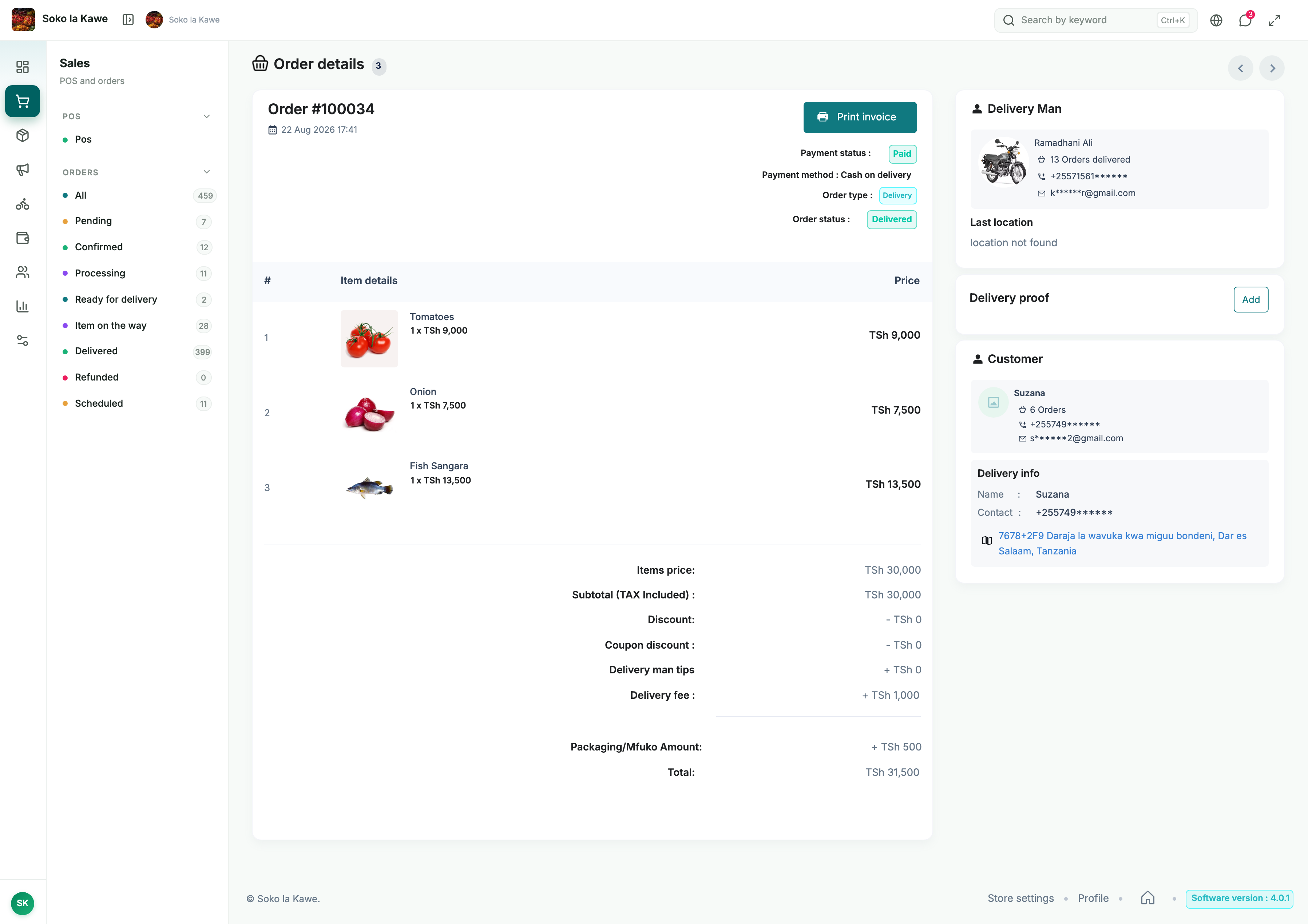
Use Orders in the dashboard or Soko Store. Check the selected branch, order number, payment status, delivery or pickup choice, schedule, products, quantities, variations, notes, contact details and address. Check any prescription attachment when relevant.
Verify you can supply the basket and meet the time shown. Resolve any stock problem with the customer before confirming. Keep the order number in the conversation so everyone is discussing the same purchase.
The normal delivery sequence
- Pending: review the incoming order and any customer instructions.
- Confirmed: accept the order once the stock and fulfilment plan are clear. Some prepaid orders can arrive confirmed after payment.
- Processing: pick and pack the items. Check the pack sizes, quantities and condition.
- Handover/Ready for delivery: the order is packed and ready for the assigned rider.
- Picked up/Out for delivery: the rider confirms collection and travels to the customer.
- Delivered: handover to the customer and required collection/verification are complete.
Assign the rider from the order details when the assignment action is available. Match the order number and packages at pickup. For customer collection, verify the customer/order at the store and complete the pickup order using the available completion action.
Work through the order on screen
- Open Orders, select the relevant list and open the order number. Read the delivery time and payment status before touching the status control.
- Check the physical stock against every line. Contact the customer about any shortage or change while the order is still awaiting your decision.
- For a pending order you can fulfil, choose the available Confirm action. Reopen/check the order to confirm the saved status. If it arrived confirmed, start from that actual status rather than trying to confirm it again.
- Move it to Processing when picking and packing starts. Use the invoice/receipt to match the right sizes and quantities.
- In the order’s rider-assignment area, choose an available rider for this branch. Make sure they know the pickup time and any unpaid amount.
- When all packages are ready, use Handover/Ready for delivery. Match the order number with the rider before releasing the goods.
- The rider records actual pickup and then delivery through Soko Delivery. Watch the order progress and follow up if the rider cannot reach the customer.
- Check the final status and reconcile the collection. Do not mark an order delivered simply because you printed its receipt or gave it to a rider.
For a Take away/customer collection order, the customer collects at your shop. Check the order number, hand over the correct goods, collect only the amount still due and use the available completion action. A rider assignment is not needed for customer collection.
Status reference
Scroll sideways to compare all columns.
| Status | What it means for the store |
|---|---|
| Pending | An order is awaiting acceptance/review. For COD, money is usually still due. |
| Confirmed | The order has been accepted, or reached this state through a payment flow. Check the actual payment status separately. |
| Accepted | A rider-related acceptance state that may appear in tracking. Check whether the store has confirmed and what the next available action is. |
| Processing | The store is preparing the order. |
| Handover | The order is ready for the rider. |
| Picked up | The rider has collected it. |
| Delivered | Delivery is complete. It should reflect a real handover, not an attempt to clear the order list. |
| Canceled | Fulfilment has stopped. Review the reason and any payment/refund implications. |
| Failed | Placement/payment has not completed normally. Do not dispatch merely because a record exists. |
| Refund requested | A customer has asked for a refund. It is a request for review, not proof money has already returned. |
| Refunded | The refund process has recorded a refund outcome. Review the associated transaction and support decision. |
A scheduled order’s future time is a fulfilment instruction alongside its status. Check the scheduled list proactively; do not treat every future order as an immediate pickup.
When you can edit a normal order
Check for an Edit action before promising the customer a change. The regular item editor is limited to pending cash-on-delivery orders where editing has been enabled for the platform and store. The eligibility rules also exclude POS orders, prescription requests, item-campaign orders, orders with separate payment records, referral-bonus amounts and admin-funded flash-sale discounts.
This is why two pending orders may not show the same Edit button. Confirmed, processing, picked-up and delivered orders are outside the normal editing window.
- Explain an unavailable item or proposed change to the customer and get their agreement.
- While the order is eligible, open Edit, adjust the permitted items/quantities/options and review the new total.
- Save, then verify the saved order and updated receipt. The system records item-edit history.
- Confirm only after the customer understands what will arrive and what they will pay.
The restriction helps keep fulfilment and payment tied to the order the customer expects. It is not a substitute for permission to make a substitution. If editing is unavailable, contact the customer and support about the proper resolution; do not replace products silently.
Cancellation and problems after confirmation
Store cancellation depends on the platform setting. The vendor action blocks cancellation once an order has been confirmed. Contact support for an order you cannot fulfil after that point and keep the customer informed. Once delivered, the normal status action does not reopen the order.
Receipts and payment
Open the order’s invoice/receipt or print action. The dashboard provides an invoice, and Soko Store has an invoice/printing view. Review it before handing it to the rider. The receipt helps the customer compare the delivery with the order.
Order status and payment status answer different questions. Confirmed does not always mean paid. A paid online order must not be charged again; a COD order needs collection of the amount still due. See Delivery training and Wallet.