
Add and maintain products
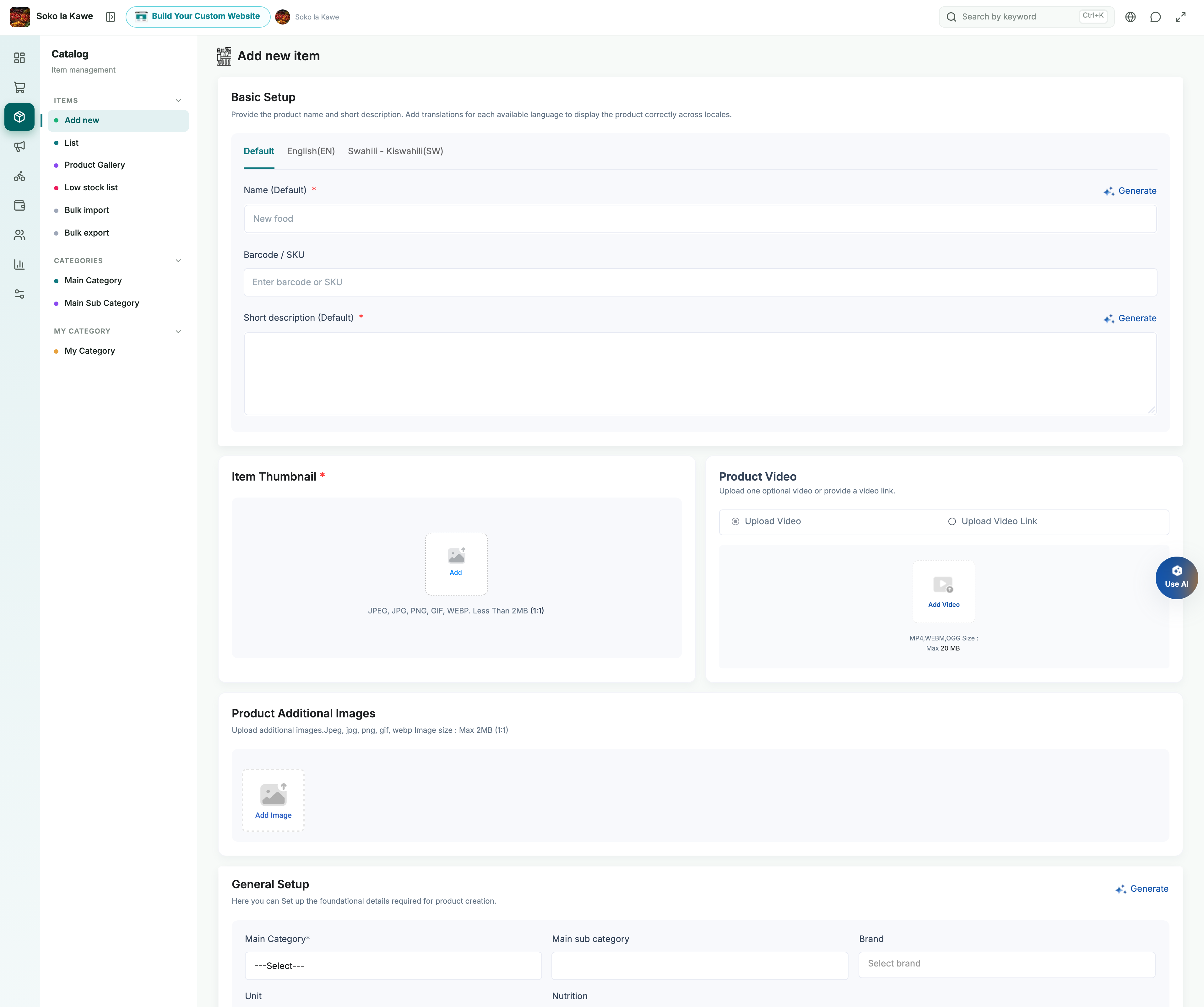
Use Product/Item management → Add new in the dashboard, or the product area in Soko Store. Start with a product you can supply reliably, complete the fields, save it and check its listing. Where product approval is enabled, a submitted item or edit may wait for review before appearing to customers.
Keep prices and stock current in both the dashboard and app. A clear pack size prevents a customer expecting a carton when your price is for one piece.
Add your first product step by step
- Choose the correct branch and open Product/Item management → Add new. In Soko Store, use the product area’s add action.
- Take a clear photo of the exact item and read the pack label. Note its brand, size, manufacturer barcode and how many saleable packs you have.
- Enter the product name and description. Say exactly what one ordered quantity contains: for example, “One 1-litre bottle”, not simply “Oil”.
- Select the main category, subcategory and selling unit. If you use your own store categories, select the right one too.
- Enter the price for that unit or pack and the available stock. Add a discount only if you intend to fund it. Use zero discount when you are not offering a reduction.
- Enter the manufacturer barcode and the applicable grocery, pharmacy or cosmetics fields. Leave unrelated optional fields alone.
- If customers have a choice, complete the variation steps below. Otherwise, keep it as a single product with one clear price.
- Add the main image and any useful extra images, then save/submit. Check the response and any approval status.
- Open the product in the customer view once available. Check the image, size, displayed price and stock; select each variation if there are choices.
Example: if you sell one 1-litre bottle for TSh 6,500, one ordered quantity should clearly mean that bottle. Do not photograph a carton and enter a single-bottle price without explaining the pack. Example prices in this guide are not recommended selling prices.
Name, images and discovery
Scroll sideways to compare all columns.
| Field | How to use it |
|---|---|
| Product name and language tabs | Give the brand/product, size and distinguishing type. Example: “Sunflower oil, 1 litre”. Complete the default language first. |
| Description | Explain what the customer receives, quantity or pack size, and useful factual details. |
| Barcode/SKU | Enter the manufacturer’s barcode exactly, including any leading zeros. See the barcode guidance below. |
| Main category and subcategory | Choose the platform category that accurately describes the product. |
| Store category | Optionally organise the product in your own store category. This complements the main category. |
| Main image/thumbnail | Show the actual item and pack. Keep text on the package readable where possible. |
| Additional images | Add useful views such as pack contents or a different side of the container. |
| Product video | Where available, use a relevant product demonstration or view of the pack. Follow the upload guidance. |
| Search tags | Add useful names customers may search for. Avoid unrelated terms. |
| Meta title, description and image | Information for search and link previews. Keep it accurate and consistent with the product. |
If an AI assistance button is available, review any suggested text before saving. It cannot know your real stock, guarantee a claim or identify an ingredient more reliably than the packaging.
Price, quantity and variations
Scroll sideways to compare all columns.
| Field | How to use it |
|---|---|
| Unit | Select the selling unit, such as kg, litre or piece. |
| Unit value | Where shown, clarify the contents of the unit, such as pieces in a pack. |
| Price | The selling price for the stated unit or pack. |
| Discount type | Choose a fixed amount or percentage. |
| Discount | The reduction you are funding on this product. For example, 10% off TSh 10,000 gives a TSh 1,000 reduction. |
| Tax | Choose only the applicable configured tax option where available. Check the final customer price. |
| Current stock | The available quantity you can fulfil. Reconcile after counter sales as well as online orders. |
| Maximum cart quantity | The maximum a customer may add for an order, where enabled. Use the form’s unlimited guidance for zero. |
| Attributes and options | Define choices such as Size or Colour, then enter the values offered. |
| Generated variations | Set each combination’s price and stock. Do not assume changing the base price changes every combination. |
For example, a cosmetics product could offer 100 ml and 250 ml variants. Verify the displayed price for each selection. For manufacturer promotions, different pack sizes with different manufacturer barcodes are best listed as separate products so the product-level barcode identifies the exact pack.
Add product choices without confusing prices
A variation is a choice within one listing, such as a size or colour. An attribute is the name of that choice; its options are the values the customer can select.
- In the product form, choose an attribute such as Size and enter the sizes actually available.
- Add another attribute only if the customer really needs it. Size and Colour together can produce several combinations.
- Review the generated combinations. Enter the selling price and available stock for each one.
- Save the product, then open its customer listing. Select each option and compare the price with the pack the customer would receive.
- Recheck individual variation stock and prices whenever the range changes. A base-price edit is not a reason to assume every option has changed.
For example, a 100 ml and a 250 ml bottle must not accidentally share a price intended for just one size. If the packs have separate manufacturer barcodes and you want them eligible for matching product promotions, create separate listings with each pack’s barcode instead.
Keep products ready for tomorrow’s orders
- At the start of the shift, compare the listed stock with what is available after counter sales and damaged or reserved stock.
- Open the product list, find the exact item and edit its price or stock as needed. Check each variation where used.
- Save and review any approval message. Where needed, use the product’s availability/status control to stop offering an item you cannot supply.
- Recheck the customer listing. Do not replace an old listing’s identity with a different product just to reuse its image or barcode.
If an item does not appear, check its active/approval status, stock, store hours, selected customer category/address and assigned store category. An item saved in the dashboard is not automatically proof that it is currently buyable.
Grocery fields
Use Organic only for a product you can accurately describe that way. If the form shows brand, unit, item type, nutrition, allergens or Halal information for your category, enter only factual information from the product or supplier. Butcheries should make the cut, weight and selling unit clear.
Pharmacy and cosmetics fields
Scroll sideways to compare all columns.
| Field | Pharmacy use | Cosmetics use |
|---|---|---|
| Manufacturer/Brand | Identify the manufacturer and brand accurately. | Identify the beauty or personal-care brand and manufacturer. |
| Suitable for / condition / Best for | Select the appropriate existing classification. | Use the cosmetics “Best for” wording for the product’s intended use. |
| Generic name | Enter the actual generic/active ingredient information. | The shared form can still show this label. Do not invent medicine details for cosmetics; use only applicable product information. |
| Basic medicine / Basic cosmetic | Marks the product in the corresponding basic-product grouping. | Use the cosmetics label shown for your shop. |
| Prescription required | Requires an attachment when a customer orders that product. | Do not enable casually for ordinary cosmetics; it changes checkout requirements. |
The pharmacy request process is explained separately in Prescriptions. This guide explains Soko’s workflow, not clinical decisions about what to dispense.
Manufacturer barcodes can connect you to wider promotions
Soko can run an item-specific coupon that matches a manufacturer barcode across stores and zones. When you list the matching product accurately, customers may use an eligible promotion at your store. Admin-funded coupon discounts are credited through the order’s settlement accounting, so that funded discount is not a store-funded markdown.
Use the barcode printed by the manufacturer on the exact pack. An internal POS barcode may identify an item inside your shop but will not match the manufacturer’s promotion. Do not copy one barcode onto different brands, sizes or products. A barcode makes matching possible; it does not guarantee a campaign or sales.
Create your own store categories
- Open Store categories/My categories and choose Add My Category.
- Enter a name customers understand, such as “Weekly essentials”, and any translations you need.
- Choose the priority shown: Normal, Medium or High. Upload the required category image and save.
- Open each relevant product for editing, select this store category and save the product.
- Open your shop as a customer and check that the category contains the intended products.
A new category with no assigned products will not appear on the store details page. Creating the category alone does not organise your existing products. You can skip store categories and use the platform’s main categories if they already suit your catalogue.
For a larger catalogue, follow Bulk import and verify a small batch first.