
One catalogue, another place to buy
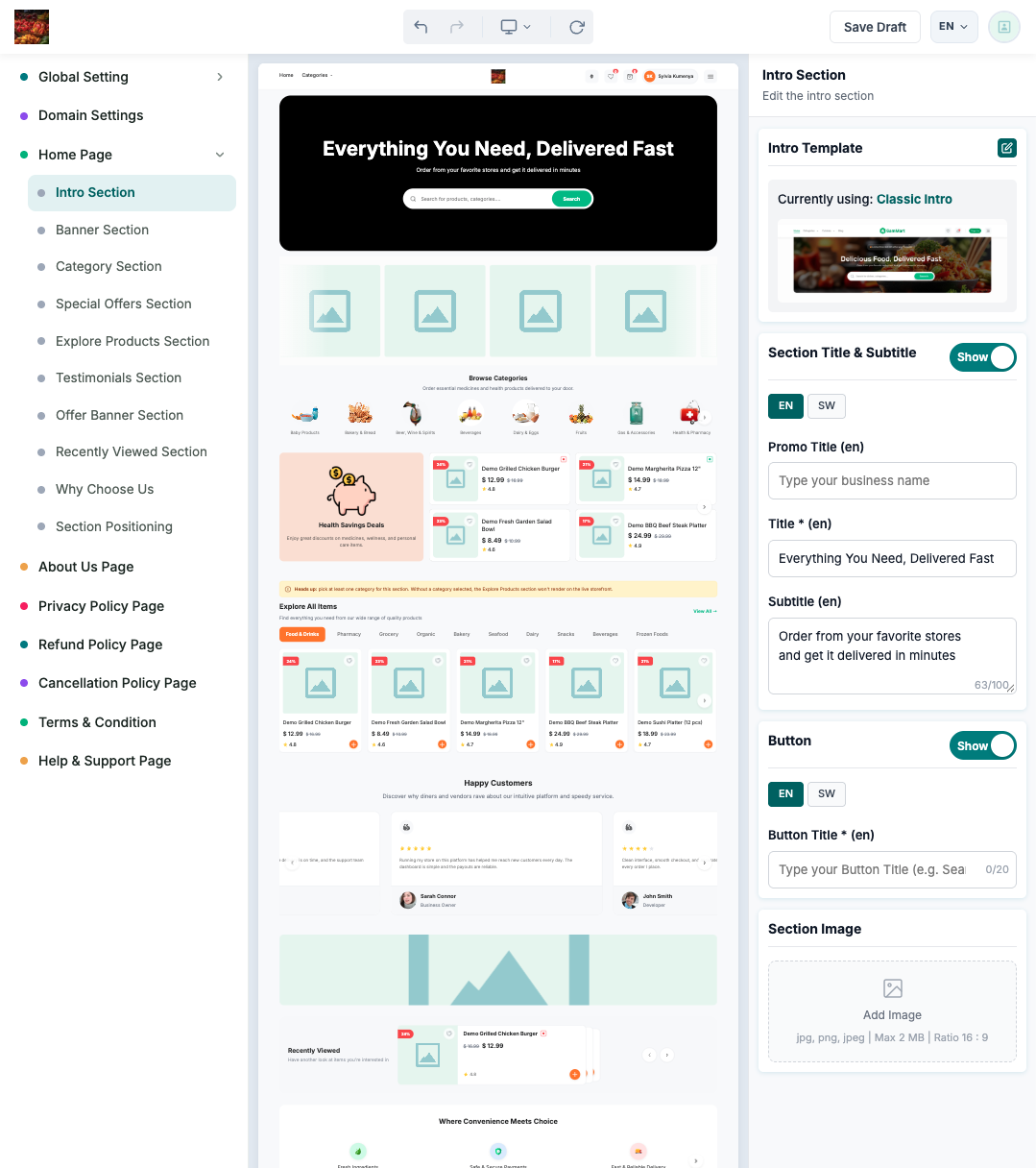
The vendor storefront gives your shop its own website while using Soko’s store products and ordering system. Customers can browse through a link you share in your Instagram bio, WhatsApp business profile or printed material.
Orders come into the same store operations. You maintain the catalogue in one place instead of keeping a separate website’s prices and stock in step manually. The storefront still depends on your Soko access, enabled features and correct store settings.
Subdomain or custom domain?
Scroll sideways to compare all columns.
| Option | Meaning | Example, illustrative only |
|---|---|---|
| Subdomain | Your shop name appears as a part of a platform-provided web address. | yourshop.platform-domain.tz |
| Custom domain | A web address you own is connected to the storefront. | yourshop.co.tz |
Choose the current option in your package. A custom-domain entitlement does not itself register the domain, pay its renewal or complete DNS/SSL setup. Ask Soko for the exact connection instructions for the address you own; do not copy another store’s DNS records.
Build the storefront
- Open Custom website/Website builder when included and enabled. Check the branch first.
- Start from the available page layout and update the store’s logo, colours and content.
- Configure the available sections: banners, categories, products and business information. Use your existing catalogue selections where the builder offers them.
- Save a draft while working. Preview the page and check it on a phone and a desktop.
- Review navigation, product links, opening information, contact details and the checkout route.
- Publish when the content is ready, then open the public address to verify it.
The builder has separate save draft, publish and discard draft actions. A saved draft is not necessarily the page customers currently see.
Understand saving, publishing and your web address
Save draft keeps work in progress. Publish makes the prepared version available through the storefront. Discard draft removes the unpublished changes; it is not the way to save them. After publishing, open the public address separately to check what a customer sees.
For a subdomain, use the address offered in your store’s setup. For a custom domain, first make sure you control that address. Soko will need you or the person managing your domain to apply the correct connection instructions. DNS means the records that direct the address to the website; SSL/HTTPS means the secure connection used when visiting it.
If the address does not open, check whether publication and domain connection are both complete. A saved draft alone does not establish a working public address. Send support the exact address and message shown so they can distinguish a page problem from a connection problem.
Keep it easy to shop
Lead with the store name, what you sell and the area you serve. Give useful categories and accurate product images room to work. Avoid putting an entire price list into one banner image: prices need to remain in product records so your team can update them.
Once the site is live, share the address and keep the same order-handling routine. Orders explains that routine; Products explains the catalogue it relies on.